> ## Documentation Index
> Fetch the complete documentation index at: https://docs.truestate.io/llms.txt
> Use this file to discover all available pages before exploring further.
# Quickstart Guide
> Get started with AI-driven analytics in under 5 minutes
## Concepts and Definitions
| Term | Definition |
| ---------------------- | ----------------------------------------------------------------------------------------------------------------------------------------------------- |
| TrueState AI Assistant | The chatbot that guides you through the platform and assists with analysing and understanding data. |
| Dataset | A single source of data representing many rows of a fixed column schema. Examples: one spreadsheet, one CSV file, or one SQL table. |
| Report | A long-form document used to capture analyses, insights and recommendations, that can be produced by a bot. |
| Dashboard | An interactive page of visualisations and tables built from a data source, allowing users to explore, filter, and drill into their data in real time. |
| Pipeline | A recipe of ordered steps on the data (ingestion, cleaning, model training, model application). |
| Custom Assistants | Chatbots that accept custom instructions to perform specific tasks on your data. |
| Organisation | The shared workspace for users on a single team. |
## Account setup
Head over to the [Platform](https://platform.truestate.io) and follow the prompts to create an account. You'll be allocated US\$10 worth of initial credits and your account will be pre-loaded with some sample data.
Once you've created your account, head to the [Team](https://platform.truestate.io/team) page and invite your team. They'll receive an email explaining how to get started.
## Tutorial
The tutorial is driven by the AI chatbot. It guides you through an example use case involving the Titanic dataset (a classic machine-learning demo) and walks you through adding data to context, running queries, creating visualisations and dashboards, and building machine-learning pipelines.
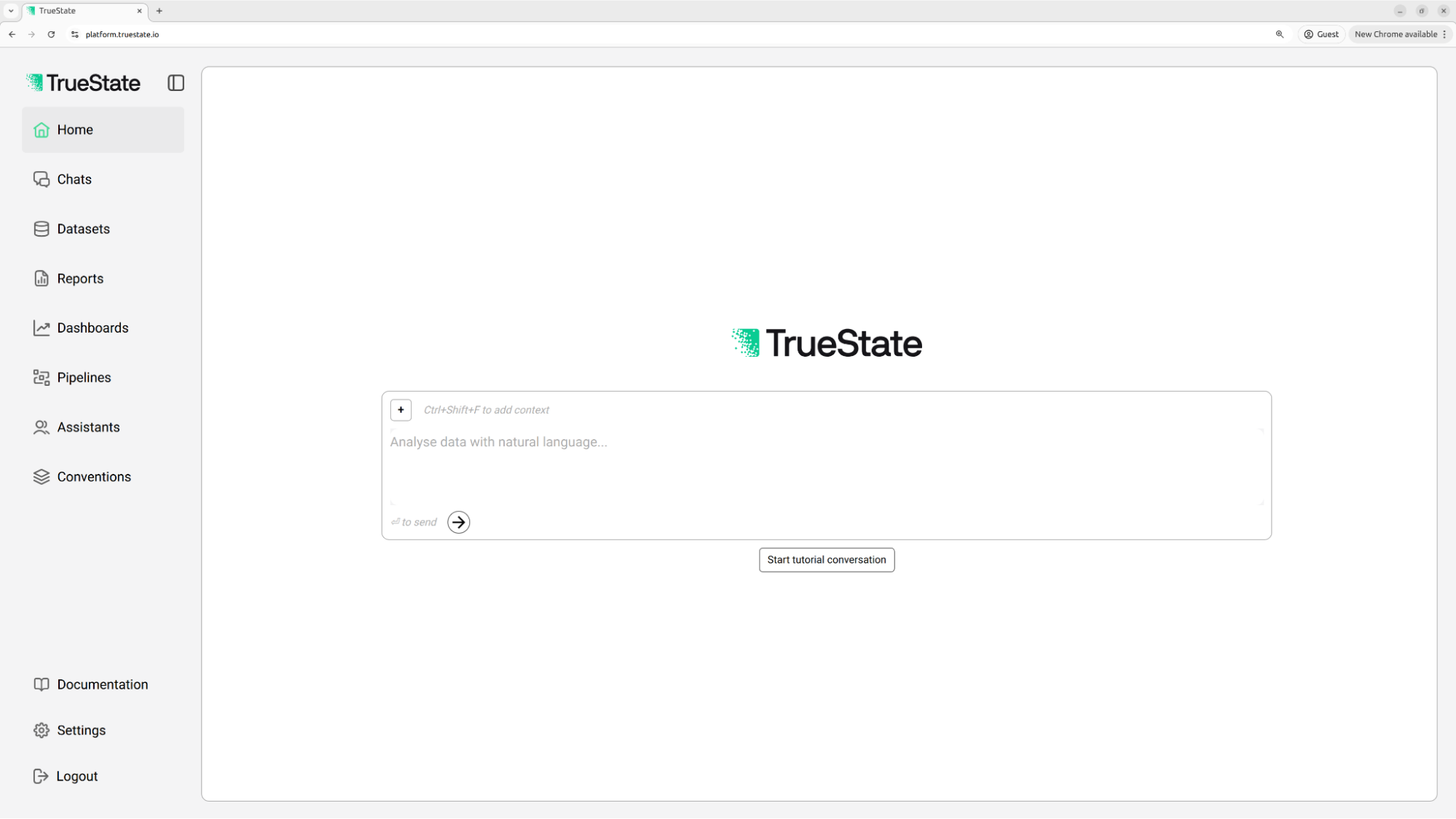
On first login, select ‘Meet your AI data analyst’. Alternatively, click ‘Start tutorial conversation’ from the home page.
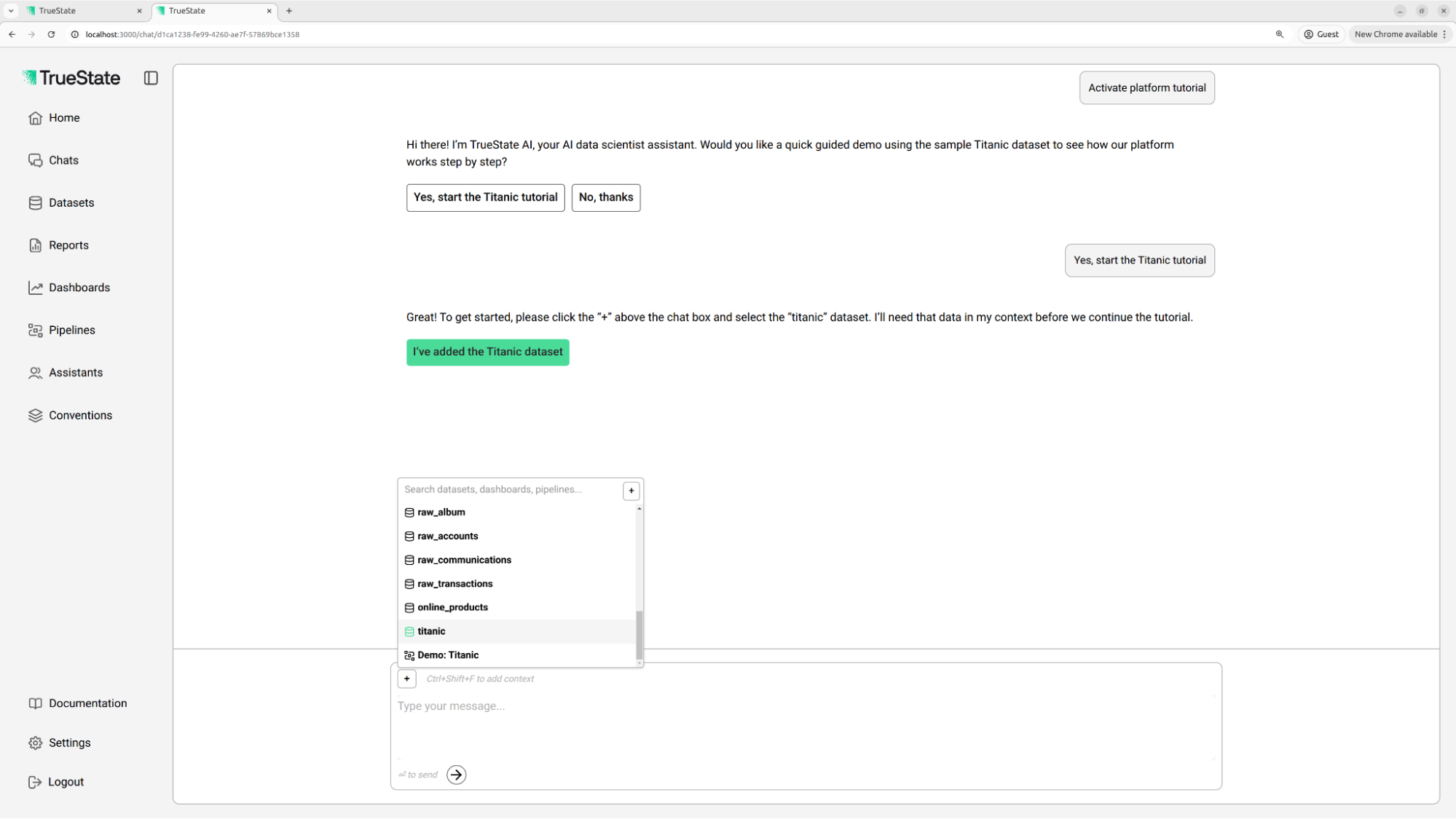
 Use the + icon above the chat box to add the Titanic dataset to the chat context.
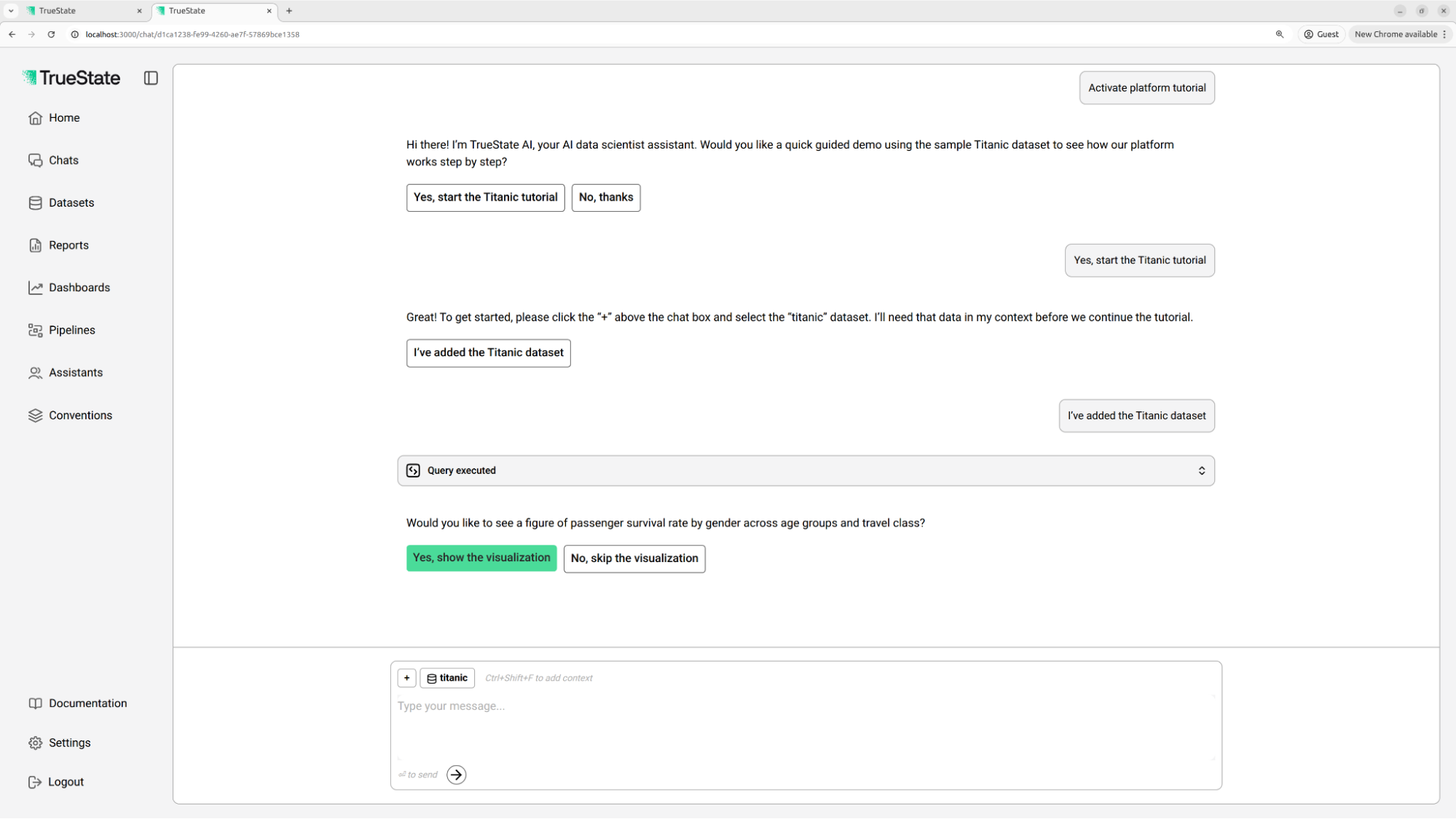
 The chatbot executes a query showing survival rates across passenger groups. Click the ‘Query executed’ card to expand and view details.
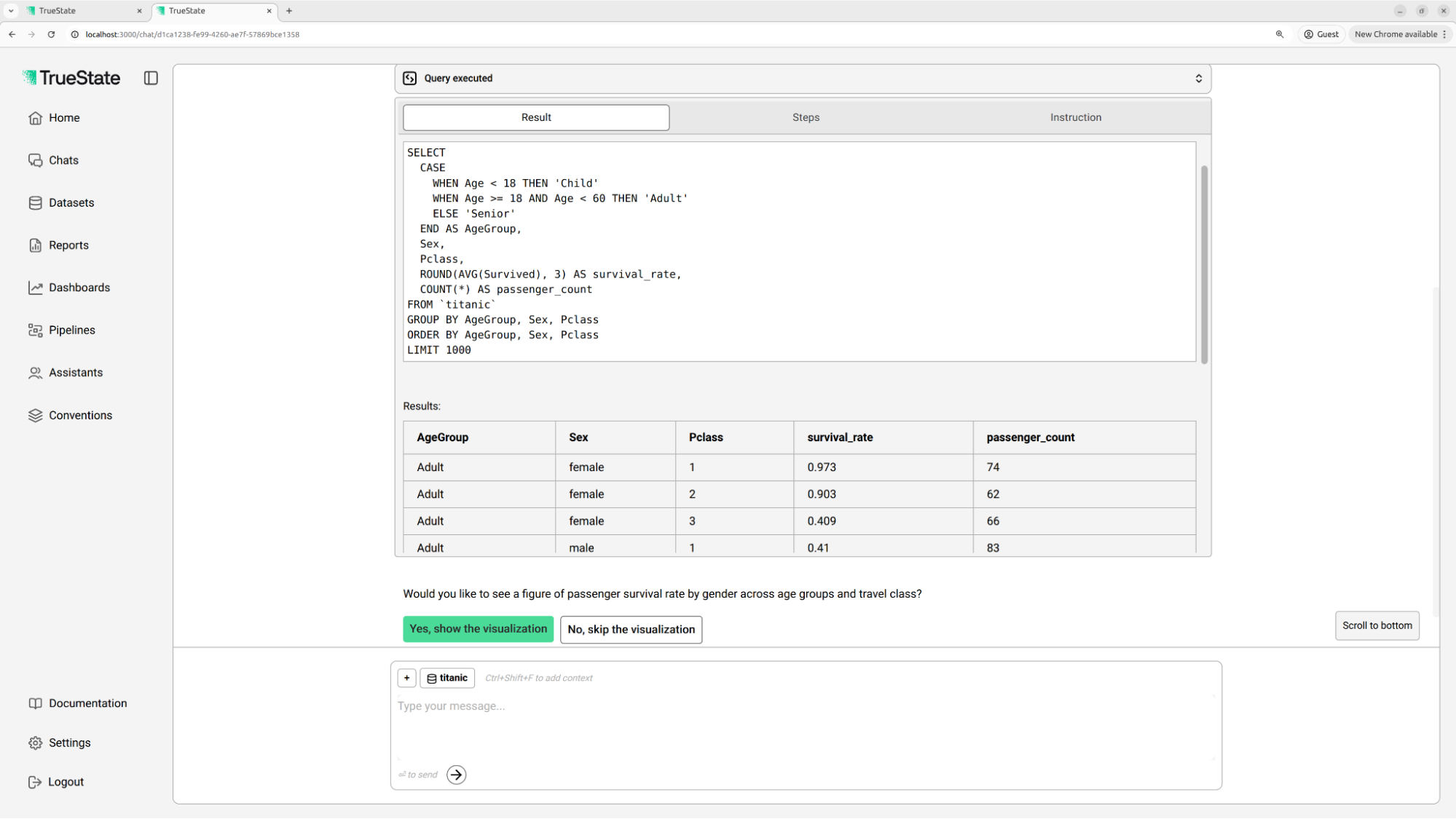 Continue and the bot will present a survival rate chart. Click the result to expand and see the figure.
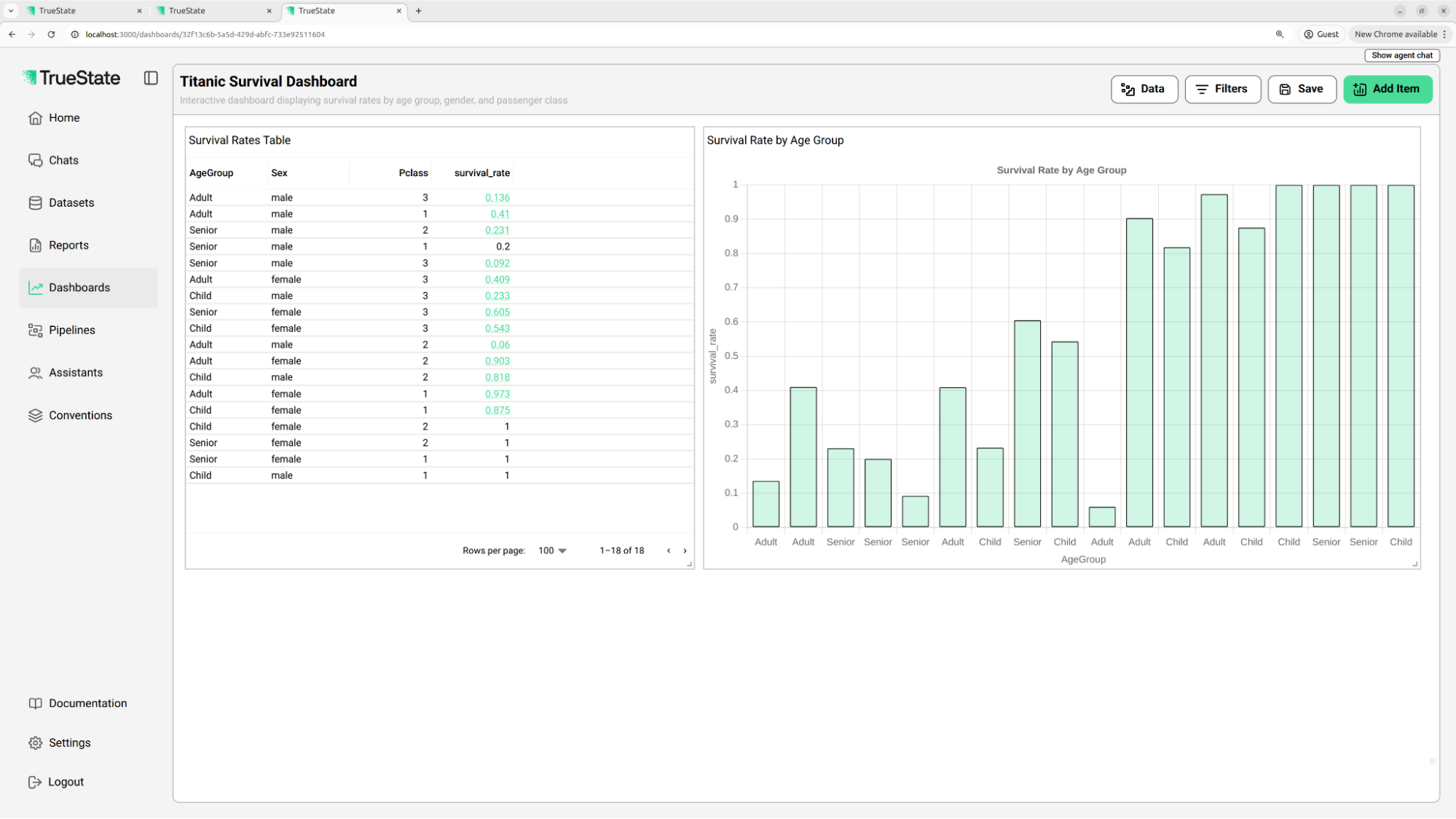
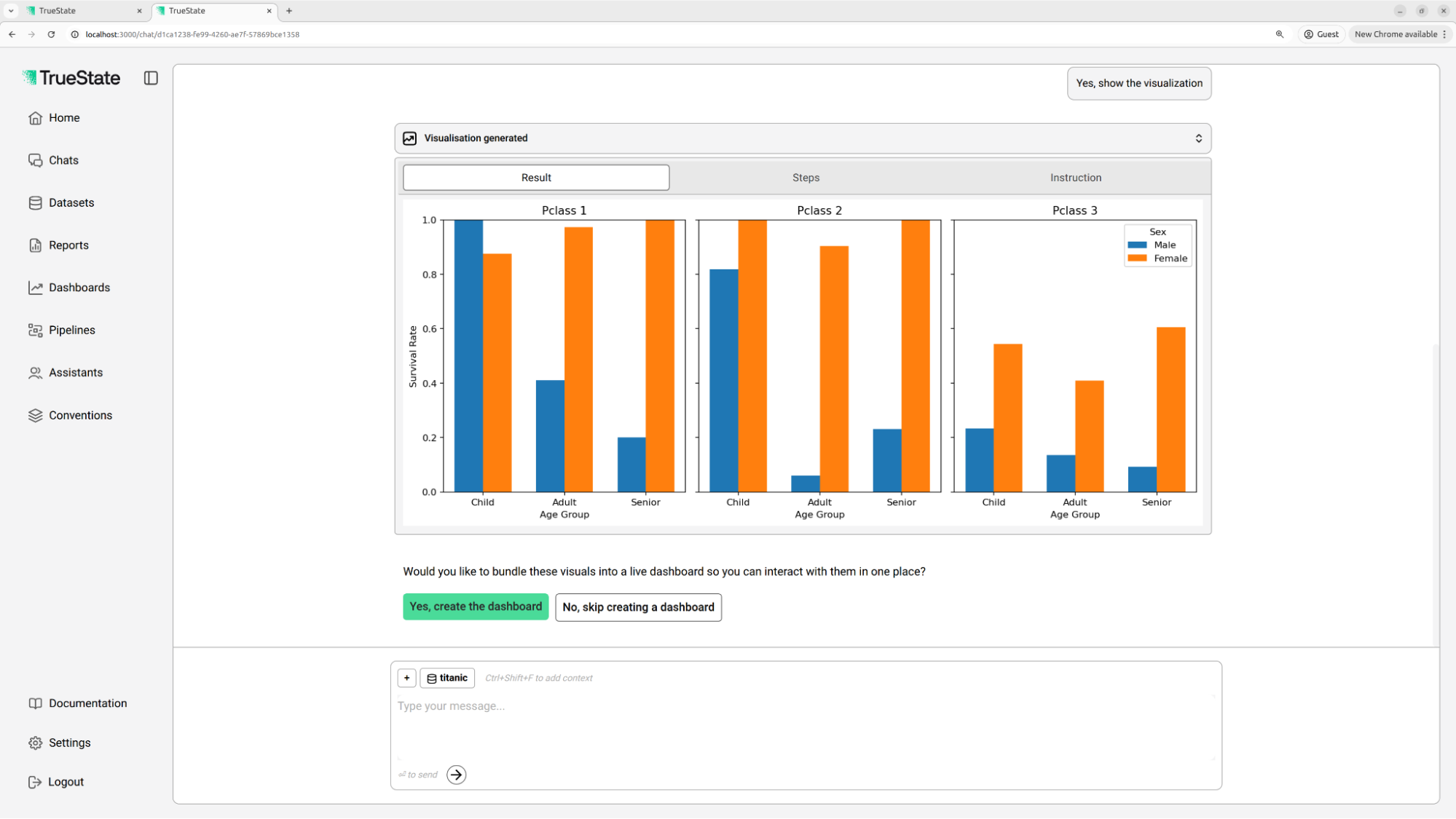 The bot offers to create a dashboard of survival rates. Continue to the dashboard to explore an interactive presentation of the data.
 Finally, accept the bot’s offer to create a pipeline, then proceed to the Pipelines page to see how a pipeline works.
 You’ve now completed the tutorial and seen a brief overview of TrueState’s functionality. For deeper dives, ask the bot for details on any feature, or continue with the guides in the sidebar.