> ## Documentation Index
> Fetch the complete documentation index at: https://docs.truestate.io/llms.txt
> Use this file to discover all available pages before exploring further.
# Reports
Reports in TrueState can be generated by the TrueState AI assistant during a chat, or can be generated by the Report Generator Agent.
The Report Generator Agent will accept a prompt and some context, and will attempt to interrogate the datasets in its context to build out a report to achieve its objective. It is both useful for automating recurrent analyses, and for finding novel insights from your data.
## Accessing Reports
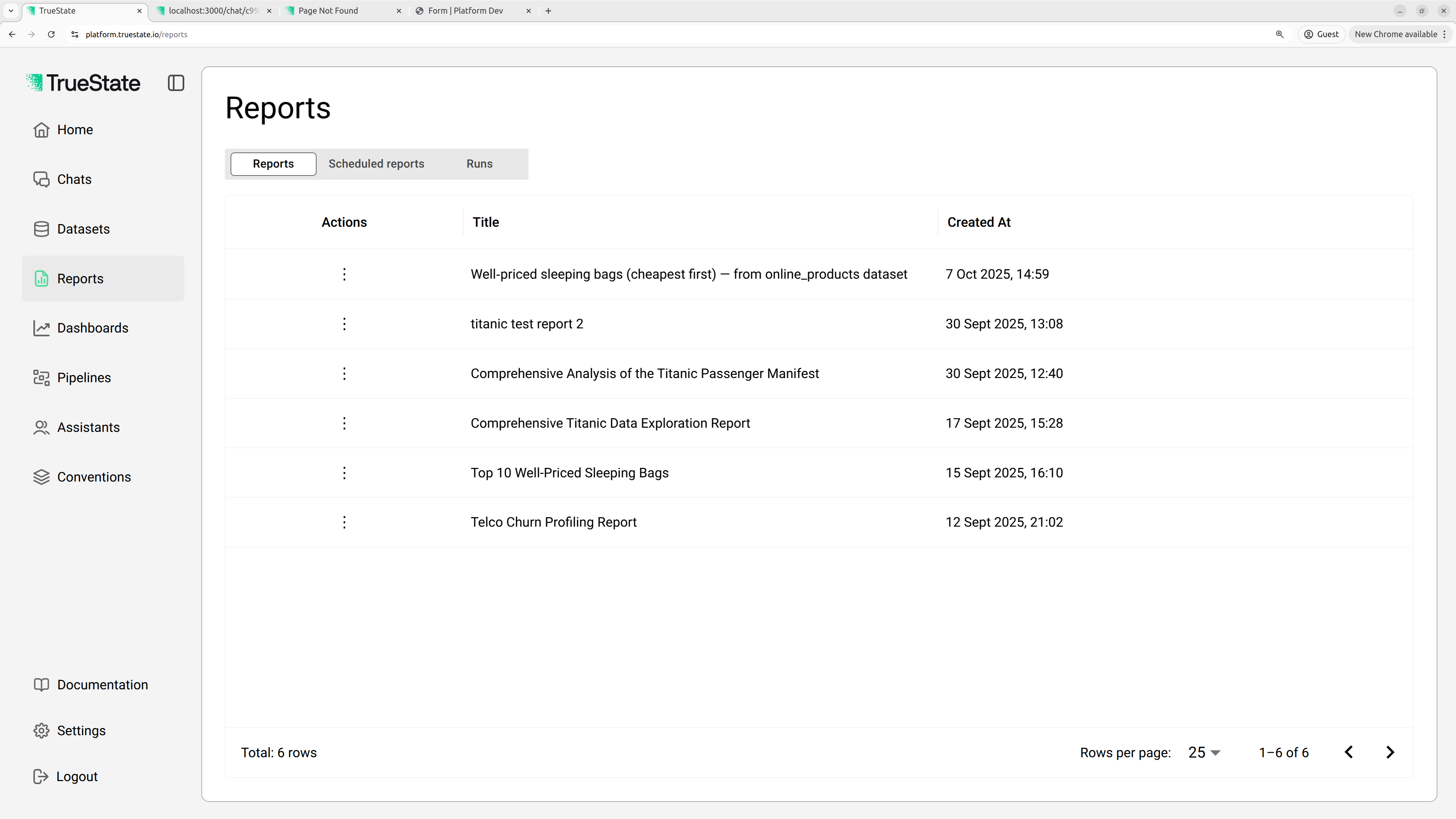
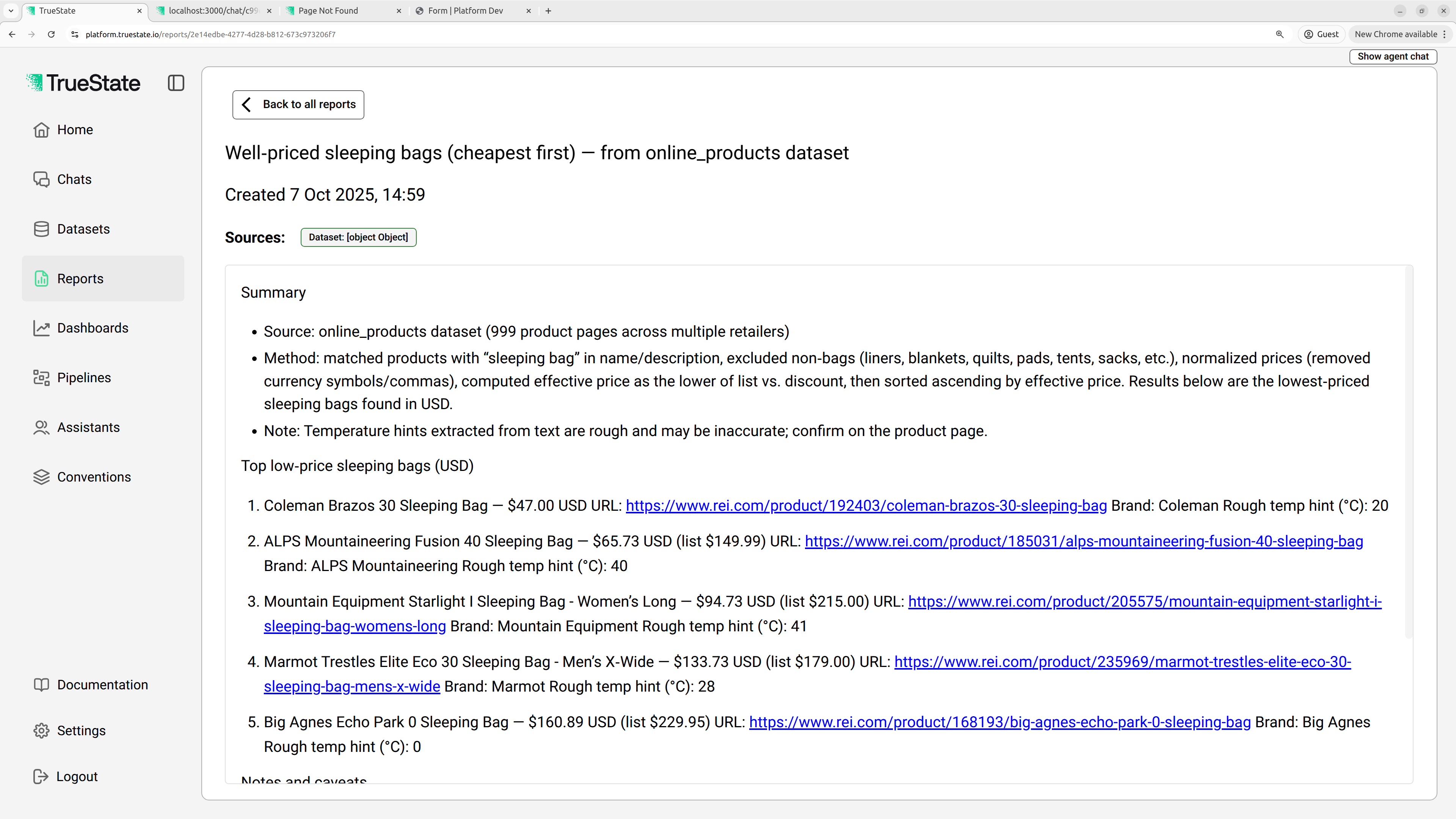
Reports can be accessed from the Reports page. Click the 3 dots next to the report name to view the report.
 ## Create Reports
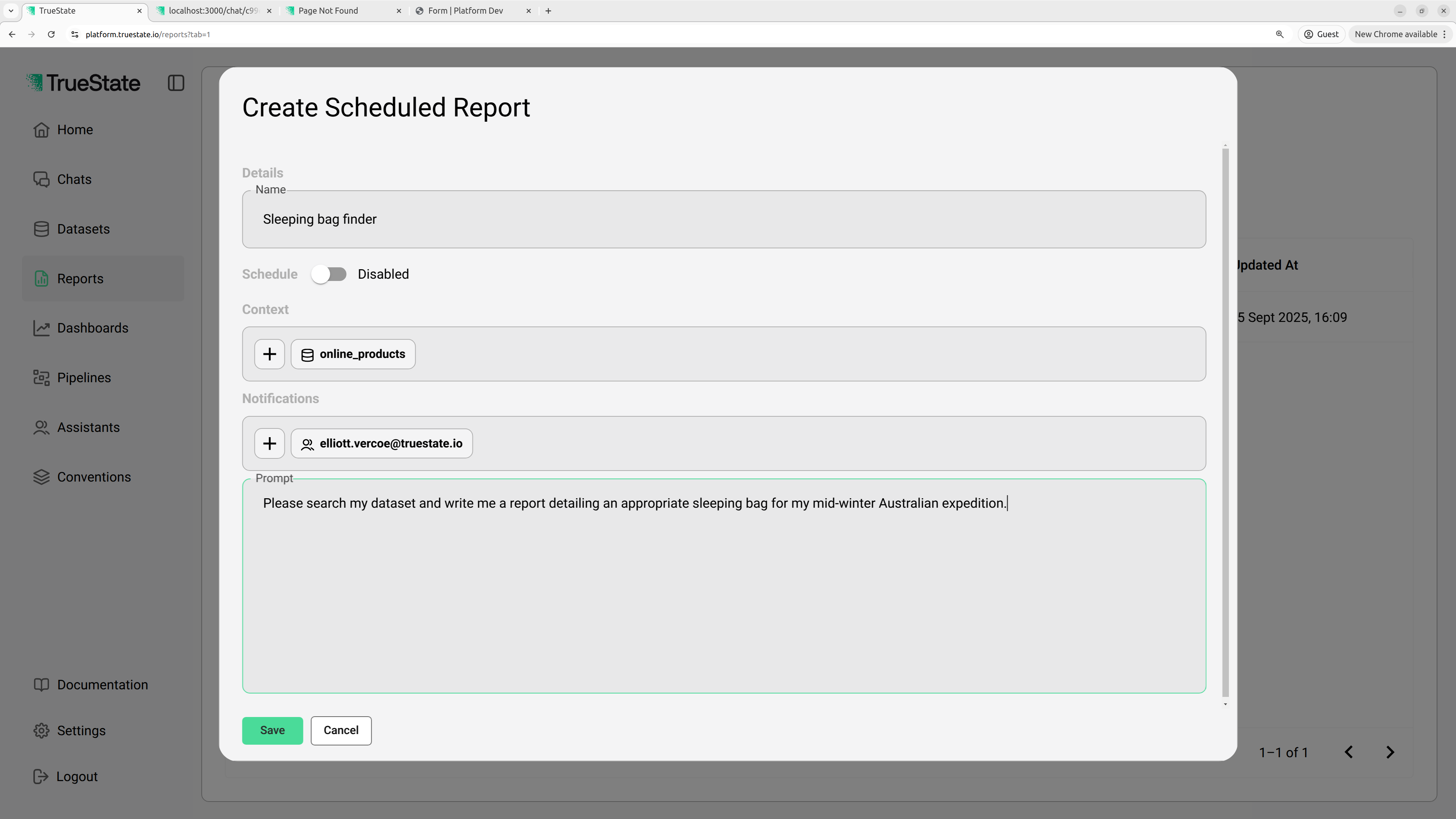
To create a report, go to the scheduled reports tab and click 'Create report template'.
### Report template fields
| Field | Value |
| ------------- | ------------------------------------------------------------------------------ |
| Name | The display name of the report |
| Schedule | If enabled, decide how often this report should be generated |
| Context | Any required datasets or previous reports that should be considered by the bot |
| Notifications | Any users who should be notified when this report is complete |
| Prompt | The instruction for the report generation |
## Create Reports
To create a report, go to the scheduled reports tab and click 'Create report template'.
### Report template fields
| Field | Value |
| ------------- | ------------------------------------------------------------------------------ |
| Name | The display name of the report |
| Schedule | If enabled, decide how often this report should be generated |
| Context | Any required datasets or previous reports that should be considered by the bot |
| Notifications | Any users who should be notified when this report is complete |
| Prompt | The instruction for the report generation |
 ### Running a Report
To kick off a report, click the 3 dots next to the report name and click the 'Run Now' button. You can also click 'View last run' which will show you the logs from the last report generation run.
## Viewing Report Generation
On the Runs tab, click the View button next to your report generation task. This will display the sequence of steps the TrueState AI Agent has taken in order to find the data for your report. This is useful for debugging prompts and understanding which data sources the bot has used.
## Chat Reports
The TrueState AI Assistant can generate a report based on your ad-hoc chat. If you would like it to save a report detailing the findings of your conversation, just ask it to save a report and it will write one up for you.
### Running a Report
To kick off a report, click the 3 dots next to the report name and click the 'Run Now' button. You can also click 'View last run' which will show you the logs from the last report generation run.
## Viewing Report Generation
On the Runs tab, click the View button next to your report generation task. This will display the sequence of steps the TrueState AI Agent has taken in order to find the data for your report. This is useful for debugging prompts and understanding which data sources the bot has used.
## Chat Reports
The TrueState AI Assistant can generate a report based on your ad-hoc chat. If you would like it to save a report detailing the findings of your conversation, just ask it to save a report and it will write one up for you.